Creating a Pergola With Clear Plans in Sketchup
You’ll start by measuring your site and analyzing sun position to determine ideal pergola placement. Then you’ll customize SketchUp’s workspace, create base plates and support posts at each corner, and model beams with proper notching for connections. Next, you’ll select your roof type, apply wood textures to all structural elements, and enable shadow tools for realistic lighting verification. Finally, you’ll export your model in vector format for construction-ready plans—and there’s considerably more detail to master at each stage.
Planning the Pergola Design
Before you begin designing your pergola in SketchUp, you’ll need to establish the foundational parameters that’ll determine its success. Start with a functionality analysis to clarify your pergola’s primary purpose—whether you’re creating a dining space, lounge area, or decorative centerpiece. Next, conduct thorough design considerations by measuring your exact site dimensions and identifying underground utilities to prevent hazards during construction. Track sun position throughout the day to optimize shade coverage and plan beam orientation accordingly. Evaluate proximity to your home versus stand-alone placement based on traffic flow and furniture arrangement needs. Document reference points like patio door sills for accurate measurements. Finally, review local building codes and zoning regulations to guarantee compliance before digitizing your plans into SketchUp. Ensure your post holes are at least 2 feet deep to provide adequate foundation stability for your structure. Consider selecting pressure-treated wood or naturally durable woods during the design phase to ensure your pergola will withstand outdoor weathering and require minimal maintenance over time.
Setting Up SketchUp Workspace
Once you’ve finalized your pergola design parameters, you’ll need to configure SketchUp’s workspace to match your workflow and project needs. Start with toolbar customization by accessing the View menu to add essential tools beyond the default options. Remove duplicate icons to preserve screen real estate and reduce clutter on your workspace.
Next, adjust display settings through View > Toolbars > Options. Toggle large tool buttons if you’re working on a smaller monitor or prefer enhanced visibility. Alternatively, select small button mode to maximize your 3D viewport for detailed pergola modeling.
On PC systems, dock toolbars into gray workspace areas using left mouse button drag. On Mac, leave toolbars floating for flexibility. Configure your tray system with entity info, outliner, and materials panels for quick access during your pergola construction process.
Creating the Base Structure
With your SketchUp workspace now configured and optimized, you’re ready to begin constructing the pergola’s foundational elements. Start by creating base plates using SketchUp’s rectangle and offset tools, establishing a 5.5-inch square footprint to match your 6×6 posts. Push-pull this geometry to approximately 0.5 inches thickness, ensuring adequate structural stability. Convert your base plate into a component for easy duplication and precise alignment. Use the tape measure tool to confirm equal spacing between anchor points—typically 8-inch intervals—and snap component origins to intersection points for perfect centering. Copy base plate components along the red axis to maintain uniformity. Group multiple base plates together before adding posts, facilitating future modifications while preventing accidental geometry disruption. For maximum durability, incorporate heavy-duty post base brackets into your design to provide the stability necessary for securing posts firmly into the ground or concrete footings. This systematic approach establishes your pergola’s load-bearing foundation, which should be securely anchored in concrete to support the weight of the pergola and roof.

Deck Base Post Anchor, for 6x6 Nominal Lumber(Actual Inner Size 5-1/2")
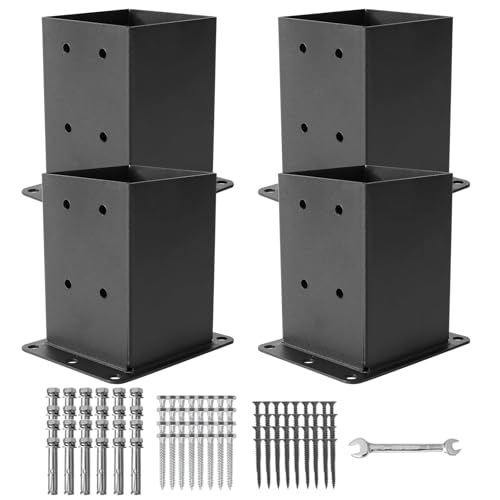
Sturdy Structure: 4”x4”post base is made from high-grade, heavy-duty 14-gauge steel, ensuring long-lasting durability. It undergoes a galvanizing and coating process, offering excellent rust resistance and protection against the elements.

Premium Construction: Crafted from 2mm solid steel with a black powder coating, our post base ensures durability and rust resistance, providing long-lasting reliability in any weather conditions.
Modeling Support Posts and Beams
Now that your base structure is complete, you’re ready to create the support posts that’ll form your pergola’s vertical framework. Start by using the rectangle tool to define your post dimensions at each corner. Set posts to a standard 10-foot height, then convert them into components for consistency across all instances.
Next, notch the post tops to receive your beams. Use the push/pull tool to remove material based on your beam connections’ requirements. This guarantees secure alignment and structural integrity.
For beams, draw rectangles at the post tops, extending 12 inches past each side. Convert beams into components and position them on the notched posts. Check alignment and spacing carefully before finalizing placement. Group posts and beams together for easier collective editing throughout your project.

This pergola features 10' X 13'. Easy to assemble.

Enhanced Extra Protection Roof: Our patio pergola features a sloped roof design that protects the retractable canopy from rain and harmful UV rays. while effectively reducing water accumulation, providing you with an enjoyable outdoor experience.

Distinguished Premium Craftsmanship: Our freestanding gazebo adopts reinforced heavy-duty metal frame for overall stability. It secures firmly with robust ground stakes, requires no wall mounting, and stays steady without damaging your house walls, balancing premium texture, sturdy structure and practical functionality.
Adding Roof Elements and Details
Your pergola’s framework is now ready for its crowning feature—the roof structure that’ll define the design’s visual character and functional performance. You’ll start by selecting your roof type: flat, gable, hip, or valley configurations. Next, establish roof overhangs by offsetting 12 inches standard, adjustable for enhanced shade or aesthetics. Set roof slopes between 15-35 degrees using SketchUp’s roof generator for complex geometries.
Convert roof elements into roof components—beams, rafters, and panels—enabling consistent editing across all instances. This approach saves time and guarantees uniformity. Finally, incorporate decorative trims, fascia boards, and soffits using rectangles and the Push/Pull tool. Group these details into components for streamlined management. Double-click components to refine positioning and angles, maintaining design accuracy throughout your pergola model. To ensure your pergola maintains structural integrity, secure the posts to concrete footing foundations using approved hardware anchors. If your pergola includes seating areas, ensure any railings meet guardrail height requirements to provide safe support for users.
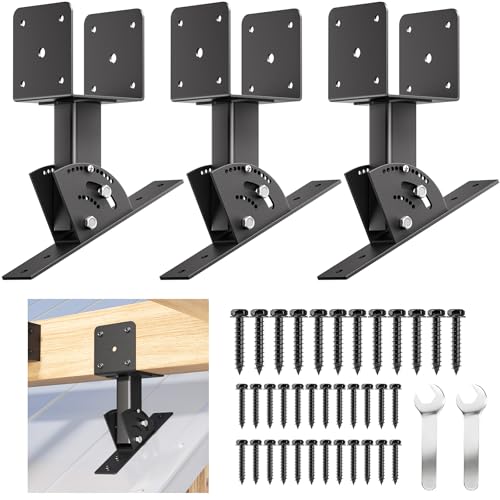
ROOF RISE BRACKET: Roof rise brackets securely anchor pergolas, patio covers, or sunshades to rooftops. Elevate your outdoor space. Perfect for DIY enthusiasts.

Material: The roof riser bracket is made of high-quality galvanized steel (thickness: 0.12 "/3mm), coated with black powder on the surface, and has effective weather resistance and rust prevention. They provide excellent strength, stable support, and long-lasting durability.

Premium Materials: roof riser brackets are crafted from specialised steel with a black powder-coated finish, delivering exceptional strength, stable support and enduring durability. Their weather-resistant properties effectively prevent rust, significantly extending service life.
Refining Alignment and Proportions
All structural elements in your pergola depend on meticulous alignment and consistent proportions to achieve both visual harmony and functional integrity. You’ll employ alignment techniques using SketchUp’s inference locking and parallel projection views to position beams and posts precisely. Lock movements along specific axes with the Shift key to maintain vertical and horizontal accuracy. For proportion adjustments, utilize uniform scaling rather than independent resizing to preserve design ratios. Edit component instances to automatically adjust all linked duplicates, ensuring consistency throughout. Apply numeric input for exact dimensional control when moving or scaling elements. Create guide lines with the Protractor tool for reference, and regularly verify the proportional relationships between height, width, and spacing to meet your design specifications. Before finalizing your design, ensure you understand the pergola permit requirements in your area, as they may affect your structural specifications and placement decisions. If you’re constructing your pergola from Douglas Fir, remember that protective treatments like sealing will significantly extend the wood’s outdoor lifespan beyond its natural durability.
Applying Materials and Textures
After establishing structural precision through careful alignment and proportions, you’ll now enhance your pergola’s realism by applying materials and textures that define its visual character. Start by creating your ground plane with grass textures from SketchUp’s material library, adjusting tiling via the Position tab to minimize repetition. Next, draw a patio rectangle and delete it from the grass group to create a cutout, then apply paver materials that match real-world dimensions. For your pergola structure, apply wood grain materials to posts, beams, and rafters, editing scale to reflect actual lumber sizes. Use the Paint Bucket tool systematically across all surfaces. Finally, lower your grass plane slightly below the patio to generate shadow relief, then enable SketchUp’s Shadow tool to verify realistic lighting effects throughout your model. For wooden pergolas exposed to outdoor conditions, consider applying teak oil or tung oil as a protective finish to enhance durability and maintain the natural wood appearance over time. To further elevate your outdoor design, ensure your pergola materials complement quality patio furniture that will be placed beneath it for a cohesive and inviting outdoor space.

ENHANCES THE BEAUTY OF THE WOOD: Teak Oil restores the beauty of grey, old and weathered teak furniture to give a golden-brown natural finish.

Provides interior or exterior one-step protection for dense woods such as teak, rosewood and mahogany

🌱 UNLEASH THE BEAUTY OF YOUR OUTDOOR WOOD WITH TEAK OIL: Our premium wood finish and sealer is specially formulated for outdoor furniture, providing waterproof protection and enhancing the natural color and structure of teak, mahogany, pine, beech, oak, and other wood types. Preserve and beautify your outdoor wood with confidence.
Finalizing and Exporting the Model
Once you’ve refined your pergola’s appearance through materials and textures, you’ll prepare it for export by selecting the appropriate output format based on your intended application. You can leverage multiple export methods through Layout, where you’ll enable vector rendering in viewport settings for clean, scalable output. PDF exports maintain vector quality suitable for further processing in design software. If you’re planning laser cutting or CNC machining, you’ll convert your PDF to SVG using either Adobe Illustrator or Inkscape’s Trace Bitmap feature. The MakePrintable platform offers native SVG export directly from your SketchUp model, ensuring compatibility with GlowForge and similar fabrication software. Each file format preserves geometric precision essential for technical accuracy in your final pergola construction plans. Before finalizing your export, consider applying fabric treatments to any textile components you plan to use with your finished pergola structure. Proper attention to fastener placement and alignment during the export process ensures your pergola plans will translate accurately to physical materials without visible hardware inconsistencies.

【Ultra-Precision & High-Speed Engraving】LONGER Ray5 Mini Laser Engraving Machine equipped with a 5.5W diode laser, keeps the razor‑sharp 0.04×0.04mm spot and 0.01mm repeat accuracy, while 12,000mm/min speed lets you engrave intricate mandalas, rich script fonts, and photo‑grade portraits on wood, bamboo, leather, plastic, ceramics, and more. Batch out a weekend’s worth of boutique‑level coasters or custom keychains in one relaxed afternoon session.


Just "Click" and "Go" - Ortur R1 laser engraver features a first-of-its-kind foldable design. It unfolds and is ready for use, requiring no installation. It features an aluminum alloy base plate to protect the desktop from damage while the laser cutter is engraving or cutting. A simple tutorial is included on the back of the base plate, which is a truly thoughtful feature.